
Query by Attribute
We want to find and select the exact part of the map that we want based on some attribute variable such as Name, Population, area etc. We are going to use ArcMap, read section Exploring ArcMap if you are still not familiar with it.
- Open sample map of SouthEastAsia in ArcMap.
-
Menu:
Selection > Select by Attributes.
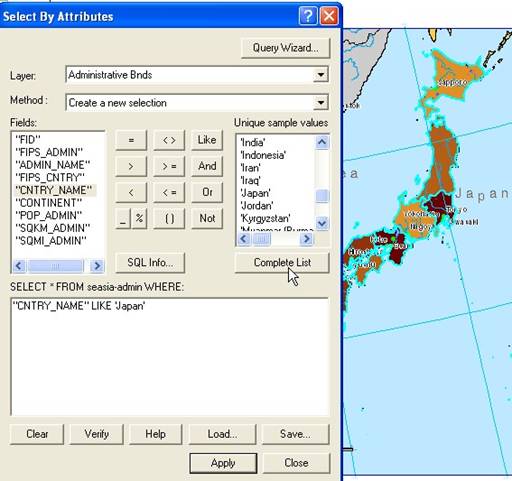
- Change the layer to Administrative Boundary , and
- Method: Create a new selection
- Make SQL syntax:
-
- Double click field CNTRY_NAME
- Click either = or Like button
- Click Japan ' in Unique sample values list.
- You will get the SQL syntax as shown in the figure below. Click Apply button then Close button
- from ArcMap menu: Layer > Selection > Zoom to selected Features
This tutorial is copyrighted .
Preferable reference for this tutorial is
Teknomo, Kardi (2015) Introduction to GIS. https:\\people.revoledu.com\kardi\ tutorial\GIS\