
Creating New Map
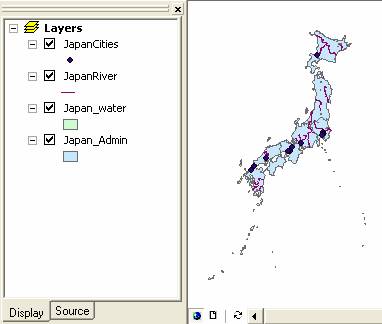
We are going to make a new map, which contain only the extracted map that we have done previously . I assumed you have done the previous section of this tutorial to create layer or shape file of Administrative boundary , Cities , River and Water Features of Japan , extracted from the SouthEastAsia map.
In ArcMap menu click File > New . If it asked to save the previous documents, you can click No.
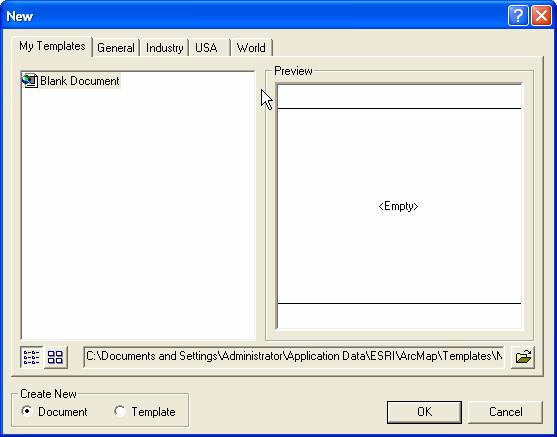
In the New dialog, select Blank document and click OK button
Use toolbar +
 to add new layer. You may add all the extracted layer file or shape file into the map
Save as new map file
This tutorial is copyrighted .
Preferable reference for this tutorial is
Teknomo, Kardi (2015) Introduction to GIS. https:\\people.revoledu.com\kardi\ tutorial\GIS\